Build Any UI Layout by Cutting Rectangles
Chris Page
This post is based on my YouTube video "Build Any UI Layout by Cutting Rectangles"
If you've ever written UI from scratch you know it is quite challenging and tedious. You can end up spending a lot of time doing the maths to get a rectangle into a position you like that is also responsive to the window size.
I eventually came across an idea called Rectcut — a method where you make cuts to rectangle shapes to determine the layout of your UI. It's a simple and effective approach to creating responsive UI without writing a lot of maths.
The result is odin-rlay, my open-source layout package for the Odin programming language. It's small and only depends on Raylib for drawing, though the core cut functions work with any rendering backend. Let me walk you through how it works and why it's one of the cleanest approaches to thinking about UI layout.
The Core Idea
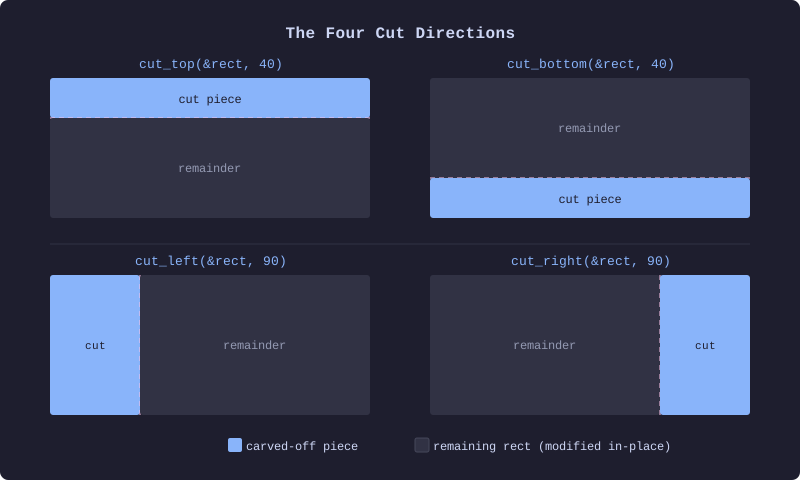
The Rect type is defined by a min and max
corner rather than a position and size:
Rect :: struct {
    minx, miny, maxx, maxy: f32,
}
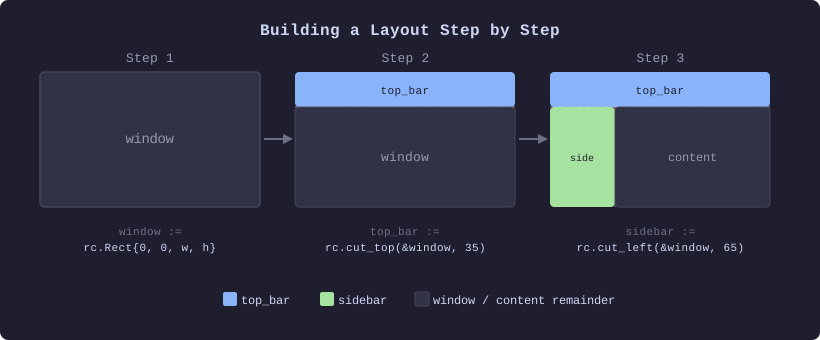
You start with a rectangle that represents your canvas — maybe the whole window, maybe just a panel inside it. To claim space within it, you cut from one of the edges. The cut returns the piece carved off and the original rectangle shrinks to fill the remainder. That's it.
import rc "rlay"

window := rc.Rect{0, 0, 1920, 1080}

top_bar := rc.cut_top(&window, 50)
sidebar  := rc.cut_left(&window, 200)
// window now holds only the remaining content area
The Cut API
There are four directional cut functions:
cut_top    :: proc(rect: ^Rect, a: f32) -> Rect
cut_bottom :: proc(rect: ^Rect, a: f32) -> Rect
cut_left   :: proc(rect: ^Rect, a: f32) -> Rect
cut_right  :: proc(rect: ^Rect, a: f32) -> Rect
Each one modifies the source rectangle in-place and returns the carved-off piece. There are also percentage variants so your layout stays proportional regardless of window size:
cut_top_percent    :: proc(rect: ^Rect, percent: f32) -> Rect
cut_bottom_percent :: proc(rect: ^Rect, percent: f32) -> Rect
cut_left_percent   :: proc(rect: ^Rect, percent: f32) -> Rect
cut_right_percent  :: proc(rect: ^Rect, percent: f32) -> Rect
When you need to divide a rectangle into several strips in one go, the multi-cut variants accept a slice of percentages. Each percentage is applied against the original dimension, so there is no compounding drift:
cut_multiple_top_percent    :: proc(rect: ^Rect, percents: []f32) -> []Rect
cut_multiple_bottom_percent :: proc(rect: ^Rect, percents: []f32) -> []Rect
cut_multiple_left_percent   :: proc(rect: ^Rect, percents: []f32) -> []Rect
cut_multiple_right_percent  :: proc(rect: ^Rect, percents: []f32) -> []Rect
For equal-sized regions there are evenly-split helpers. Note
that pieces is an f32 here:
cut_multiple_evenly_height :: proc(rect: ^Rect, pieces: f32) -> []Rect
cut_multiple_evenly_width  :: proc(rect: ^Rect, pieces: f32) -> []Rect
And for a uniform grid you can split both axes at once:
cut_rect_evenly :: proc(rect: ^Rect, len_col: f32) -> []Rect
The returned slice has len_col * len_col cells,
filled in row-major order. This is good for creating nice
even grids and tables.
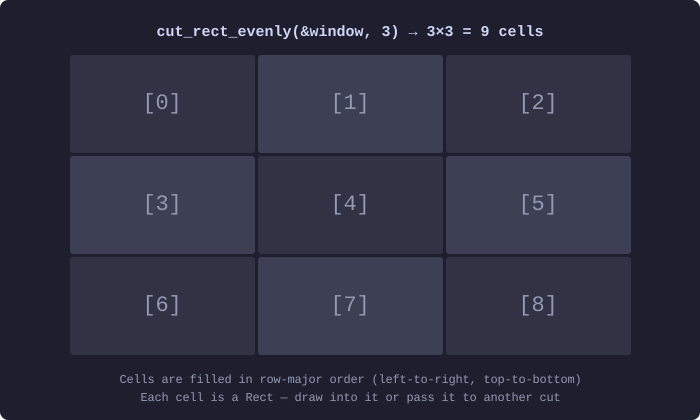
cut_rect_evenly(&window, 3) produces 9
equal cells indexed in row-major order.
Padding
Once you've carved out a region you often want some
breathing room inside it. add_padding shrinks a
rect by a fixed amount on whichever sides you choose:
Padding :: enum { Top, Bottom, Left, Right, All }

add_padding :: proc(rect: ^Rect, padding: f32, padding_type: Padding = .All)
content := rc.cut_top(&window, 80)
rc.add_padding(&content, 8) // 8px inset on all sides
Drawing with Raylib
Rectangles
I use Raylib a lot in my projects and so also added features
that directly support it. The low-level draw call accepts a
raw rl.Color:
draw_rect :: proc(
    rect:         Rect,
    color:        rl.Color,
    border_color: rl.Color = {0, 0, 0, 0},
    radius:       f32      = 0.0,
    segments:     i32      = 8,
    border_size:  f32      = 2,
)
Pass a non-zero radius for rounded corners. The
radius is in pixels and is converted internally to raylib's
0–1 roundness ratio, so corners stay the same pixel size no
matter how large the rectangle is. A transparent
border_color skips the border draw entirely.
Buttons
rect_button is a hit-test only — it returns
true when the left mouse button is pressed
inside the rectangle, and you handle the drawing yourself. I
will eventually update and new button features as this only
uses the left mouse button which isn't viable for changing
keybinds or using different mouse buttons:
rect_button :: proc(rect: Rect) -> bool
Progress Bar
A simple progress bar is included. You pass a pointer to the rect so it can be sliced internally. It has some default colours and needs improving by allowing to change colour but it's a good example of how a progress bar would work:
draw_progress_bar :: proc(rect: ^Rect, progress: f32)
Text
There is also text support but is still limited as it lacks features such as text wrapping and better font support. Text drawing supports left, centre, and right alignment with an optional padding offset. You need to load a font once at startup:
TextAlign :: enum { Left, Center, Right }

init_font :: proc(font: rl.Font)

draw_text :: proc(
    text:      cstring,
    rect:      Rect,
    colour:    rl.Color,
    font_size: f32,
    align:     TextAlign,
    padding:   f32 = 0,
)
Colour Schemes
Choosing a raw rl.Color for every draw call
gets tedious quickly. odin-rlay lets you work with semantic
colour roles instead:
UIColor :: enum {
    Background,
    Primary,
    Secondary,
    Accent,
    Raised,
    Sunken,
}

TextColor :: enum { Main, Muted, Dim }
You initialise the palette once by providing five base
colours. The library derives the remaining variants
automatically —
Raised and Sunken are your
background shifted twelve brightness steps lighter and
darker, while Muted and Dim text
are your text colour at 55% and 30% alpha respectively:
init_ui_colours :: proc(text, background, primary, secondary, accent: rl.Color)
rc.init_ui_colours(
    text       = rl.Color{220, 220, 235, 255},
    background = rl.Color{30,  30,  46,  255},
    primary    = rl.Color{137, 180, 250, 255},
    secondary  = rl.Color{166, 227, 161, 255},
    accent     = rl.Color{243, 139, 168, 255},
)
With a palette registered you can use the themed drawing functions and reference colours by role rather than value:
draw_rect_ui :: proc(
    rect:         Rect,
    role:         UIColor,
    border_color: rl.Color = {0, 0, 0, 0},
    radius:       f32      = 0.0,
    segments:     i32      = 8,
    border_size:  f32      = 2,
)

draw_text_ui :: proc(
    text:      cstring,
    rect:      Rect,
    role:      TextColor,
    font_size: f32,
    align:     TextAlign,
    padding:   f32 = 0,
)
Changing the look of the entire application then becomes a
single init_ui_colours call — no hunting
through every draw call to swap a colour.
Wrapping Up
Rectcut is one of those ideas that sounds almost too simple until you actually use it. The code reads like a plain description of your layout, the coordinate maths stays hidden inside the library, and adding a new panel is just another cut. Combined with semantic colour roles you get a UI system that is easy to reason about and easy to restyle.
The package is still evolving — keybind support for buttons and more draw primitives are on the to-do list. If you want to follow along or contribute, the source is available on GitHub.